-1.png?width=200&height=38&name=Untitled%20design%20(14)-1.png)
Steps to Connect Canva:
-
Access Your Profile:
-
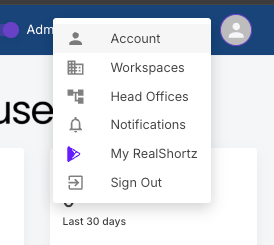
Click on your profile icon in the top-right corner of the platform.
-
Select Account from the dropdown menu.
-
-
Navigate to Apps & Connections:
-
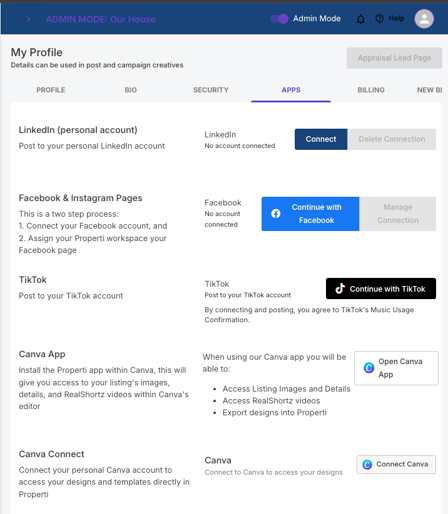
Within your account settings, go to Apps.
-
Find the Canva app in the list.
-
-
Connect Canva:
-
Click Connect or Allow when prompted.
-
Make sure you connect the correct Canva account, ideally your enterprise account, if applicable.
-
-
Verify Connection:
-
Once connected, return to your Creatives section.
-
Try creating a new creative manually.
-
The previous error message should no longer appear, and you can access all your Canva templates.
-
Troubleshooting Tips:
-
Ensure you are using the correct Canva login credentials.
-
Refresh the page after connecting the account if the error persists.
-
If you still see the error, disconnect and reconnect your Canva account following the same steps.