-1.png?width=200&height=38&name=Untitled%20design%20(14)-1.png)
🔄 Automation Flow Overview
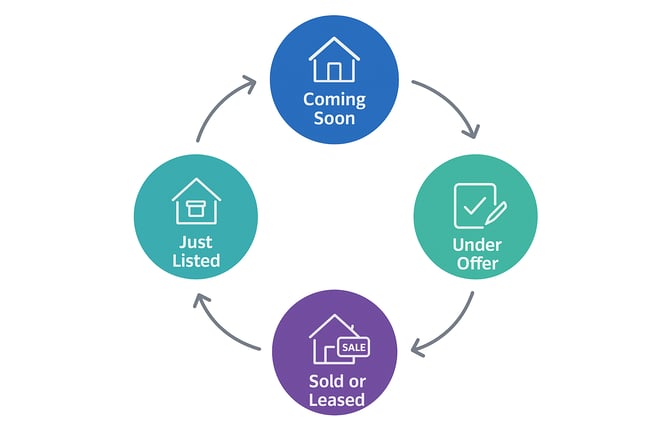
🔵 Coming Soon
-
New Listing Trigger with premarket or offmarket status.
-
Premarket is specific to REX CRM.
-
Other CRMs may use off-market to indicate Coming Soon.
-
🟢 Just Listed
-
New Listing Trigger with current status.
-
Captures listings first sent as current (on market).
-
Does not capture existing listings.
-
-
Update Listing Trigger with current (on market) as target status.
-
Captures existing listings changed from premarket/offmarket to current.
-
✅ Key point: Having both triggers ensures all Just Listed properties are captured, regardless of whether they were first added as premarket/offmarket or directly as current.
🟡 Under Offer
-
Update Listing Trigger with under offer/contract status.
-
Captures existing listings marked as Under Offer.
-
🟣 Sold or Leased
-
Update Listing Trigger with sold or leased as target status (depending on property type).
-
Captures existing listings when updated to sold or leased.
-
FAQs
Q: Why didn’t my Coming Soon automation run?
A: Coming Soon triggers only fire when a listing first enters as “premarket” or “offmarket.” If a listing jumps straight to “current,” it won’t trigger this automation.
Q: Why didn’t my Just Listed automation trigger?
A: If you only have the “update listing status → current” trigger, it won’t fire for new listings added directly as current. You’ll need both triggers (new listing + update status).
Q: Can I use only one trigger for Just Listed?
A: No. To cover all cases, you need both:
-
New Listing (current)
-
Update Listing Status (to current)
Q: My Sold automation didn’t run. What should I check?
A: Ensure the trigger is set to “update listing status → sold/leased.” Also confirm the CRM pushed the update correctly.
Troubleshooting Tips
-
Check CRM status mapping: Ensure your CRM sends the right statuses (premarket/offmarket/current/sold/leased). Misaligned statuses may prevent triggers from firing.
-
Test with a dummy listing: Create a test listing to verify triggers before relying on live campaigns.
-
Confirm trigger type: “New Listing” triggers only fire on first entry into the platform; “Update Listing Status” triggers only fire on status changes.
-
Check automation logs: In Properti.AI, review automation logs to see if the trigger event was received.
-
Contact support: If automations still don’t fire after verifying the above, reach out to support with the listing ID and workspace name for review.